Install Windows Service
TUN mode on Windows requires a system service. If connecting fails with a service error, follow these steps.
Alternatively, you can switch inbound mode to System Proxy in UmiVPN settings if you do not need TUN.
- 1
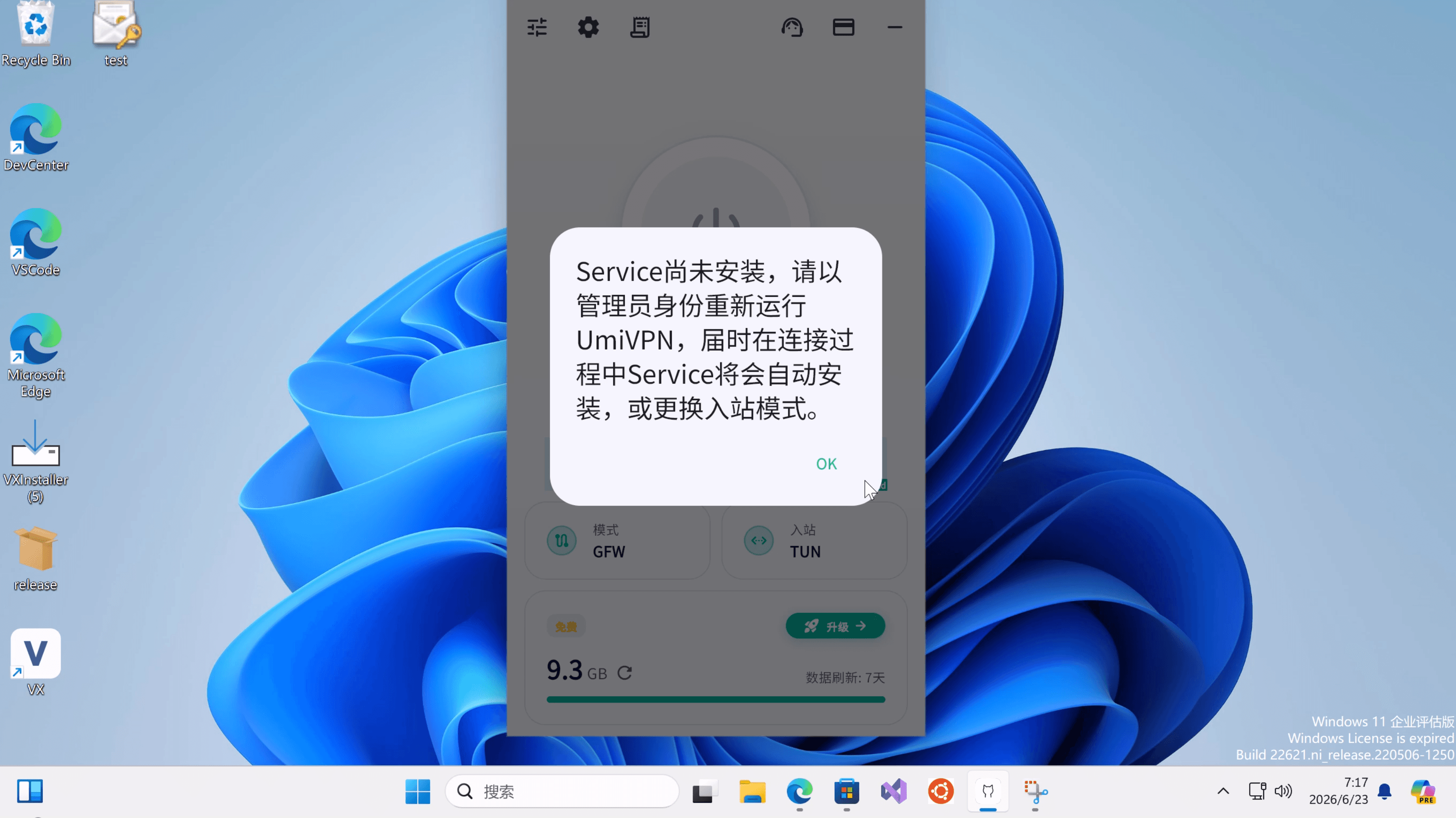
Service not installed
When you connect with TUN inbound mode, you may see a dialog saying the Windows service is not installed yet. Tap OK and continue with the steps below.
- 2
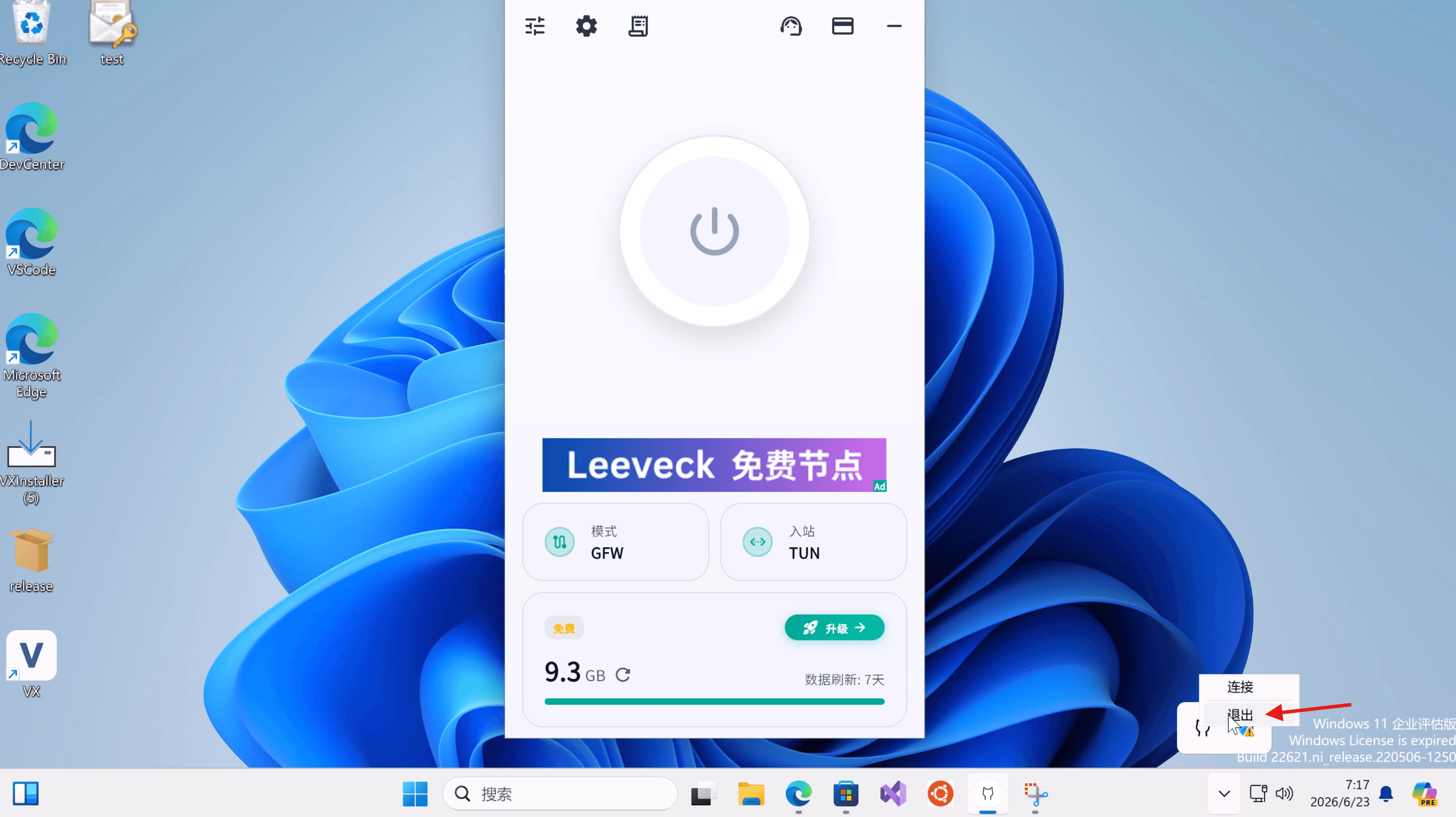
Exit UmiVPN
Right-click the UmiVPN icon in the system tray (notification area) and choose Exit.
- 3
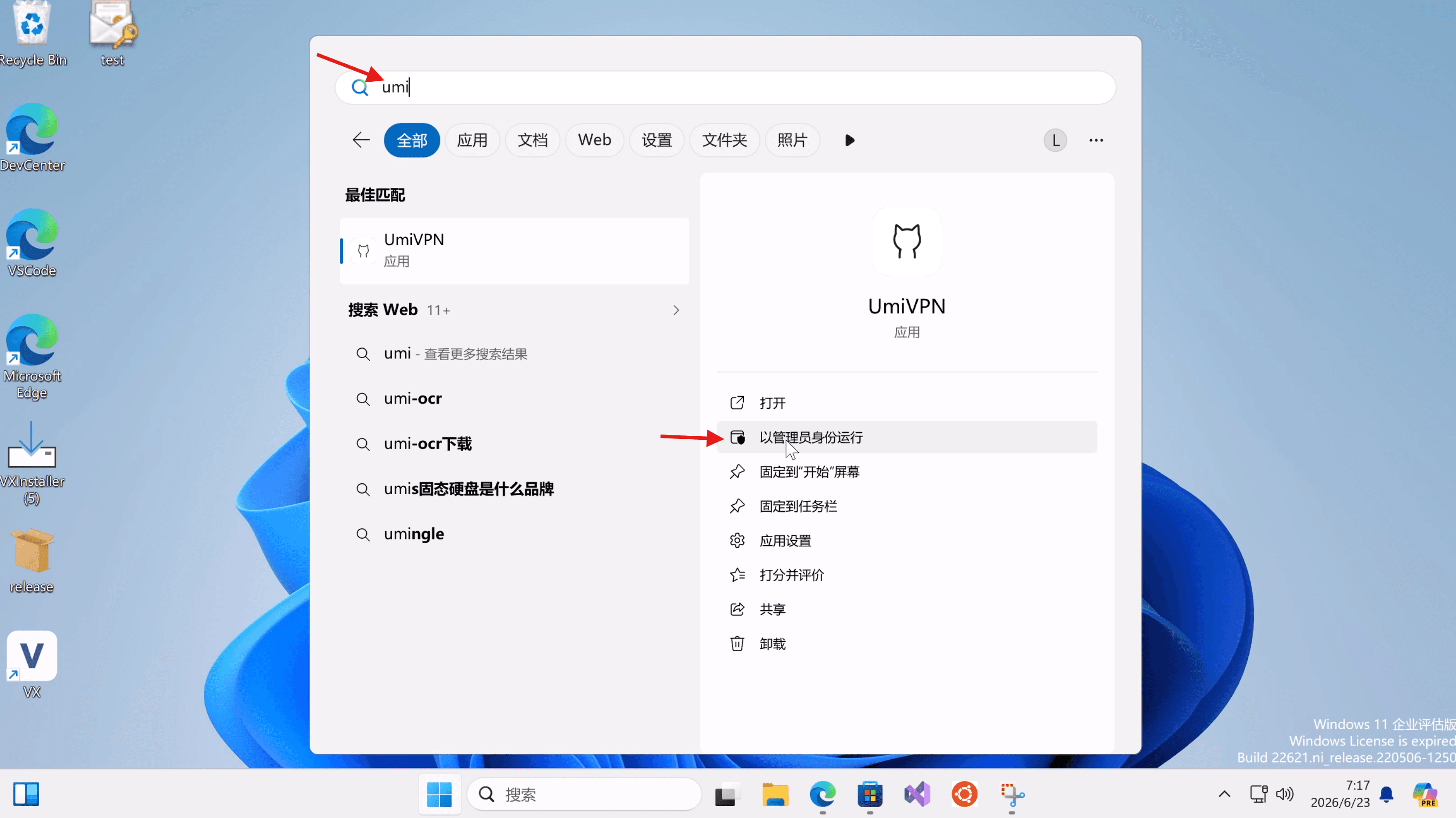
Run as administrator
Open Windows Search, type UmiVPN, then select Run as administrator from the app options.
- 4
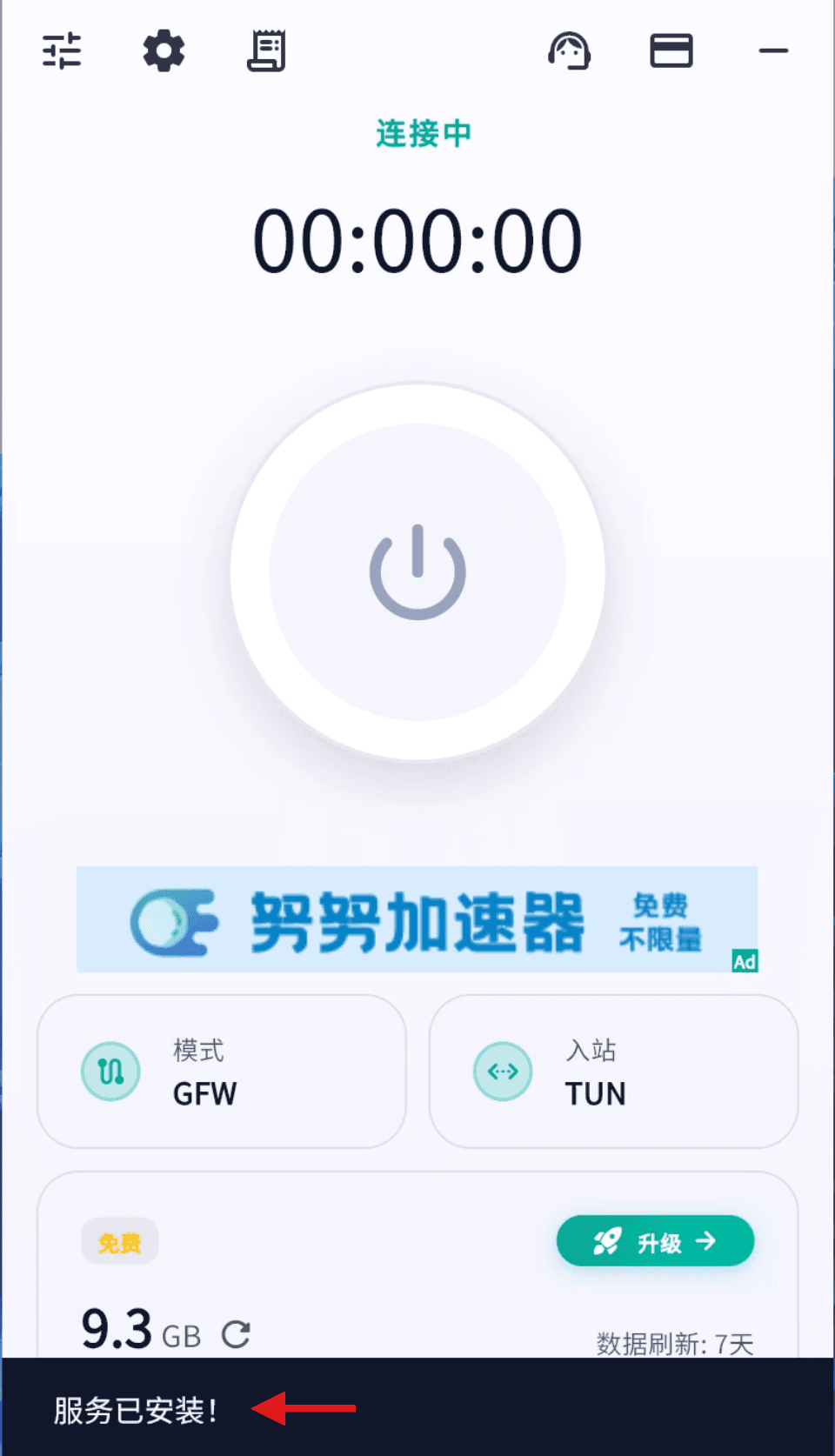
Connect again
Open UmiVPN and connect. The service installs automatically during connection. You should see a Service installed! message at the bottom of the window.
- 5
When you no longer need UmiVPN
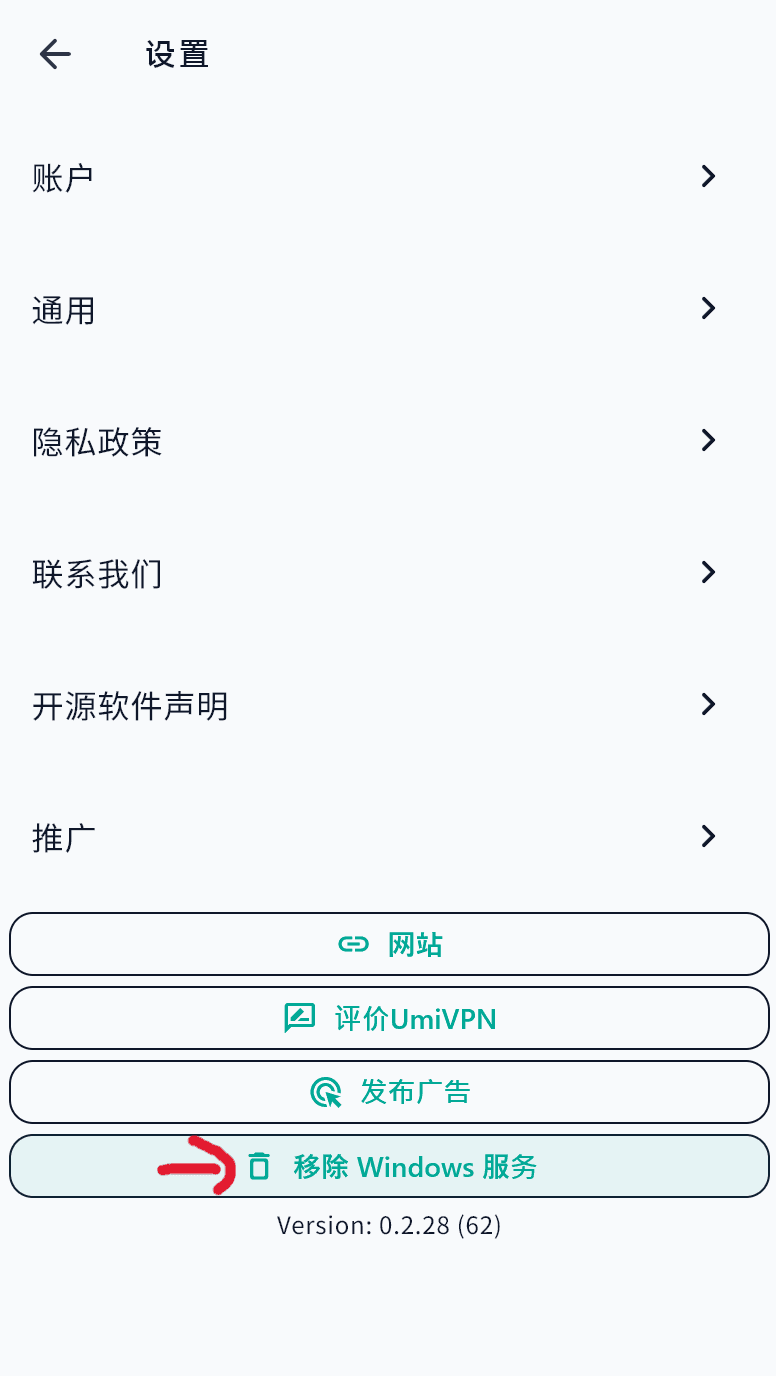
Delete the service in Setting page by clicking the Remove Windows Service button.